

This July, we shipped a new advisor that flags translations gone stale after a glossary or style guide change, opened up serverless apps so anyone can build and host their own tools on Crowdin without a backend, and taught Crowdin Copilot to learn skills specific to your organization. The AI usage report now shows what every token was spent on, by which app, and what it cost.
There’s also a floating screenshot viewer in the Editor, scope tracking for tasks, noticeably faster loading for large projects, and a batch of Figma plugin updates. Let’s dig in.
Stale Translations Advisor: catch translations that fall out of date
Your glossary says “workspace” now, not “dashboard”. Your style guide dropped title case last month. The strings translated before those decisions? Still out there, still non-compliant, and nobody is going to reread them all to check.
Stale Translations Advisor is a new AI-powered app that does the rereading for you. Point it at a project, and every time a linked glossary or style guide changes, it checks the translations you already have against the new rules. When a change makes an existing translation incorrect — the old term is still in use, a fresh style rule is broken — it flags the exact strings, with the reason, so your team reviews what actually needs another look instead of auditing everything.
Getting started takes a few minutes:
- Install the advisor app and pick which AI model runs the checks
- Choose the projects it should watch
- Review findings as they appear — as advisory cards and in the project’s Tools tab
It’s part of a series of experiments we’re running on one theme: the platform should notice quality drift before your reviewers — or your users — do.
Build and host Crowdin apps: no server required
We’re introducing serverless apps — a new type of Crowdin app that runs entirely on Crowdin’s infrastructure. A serverless app is a full-fledged app that can use the Crowdin API; you build it — or let your AI agent build it for you — and Crowdin hosts and runs it, with no backend to deploy or maintain. Self-hosted apps keep working as they always have; this is a new option, not a replacement.
Until now, adding your own tool to Crowdin meant standing up a server for it, and that overhead is exactly why so many small but genuinely useful tools never got built. A serverless app skips all of it — and can appear almost anywhere you already work: panels in the Editor, project tools and reports, dashboards, modals, and context menus for TM, glossaries, files, and screenshots. The tool your team keeps asking for, like a panel showing product screenshots next to the string being translated, becomes an afternoon of work rather than a project.
The flow is short: install the CLI and sign in with your Crowdin account, scaffold a working app from a starter template with one command, develop against your live Crowdin with hot reload, and publish with one more command. From then on, Crowdin serves it. New apps stay private to your account until you decide otherwise, and you can submit them to the Crowdin Store just like self-hosted apps. When an app genuinely needs server-side logic — webhook handling, file processing — self-hosted is still the right choice. Serverless apps work in both Crowdin and Crowdin Enterprise.
And you don’t have to write it yourself. We publish skills for AI coding agents — add them with npx skills add crowdin/skills — and one of them builds a serverless app end to end. They work with Claude Code, Cursor, Codex, Gemini CLI, GitHub Copilot, and any other agent that supports the Agent Skills format. Describe the chore you want to stop doing by hand, in your own words; the agent works out where the app should live and what it may access, asks only questions that don’t require knowing how any of this works, then publishes the app and hands you a link to it running inside Crowdin. Typically 10–15 minutes.
Full details are in the serverless apps documentation and the SDK reference, and the agent skills live in the crowdin/skills repository.
Teach Crowdin Copilot your team’s skills
Crowdin Copilot now supports skills — reusable, written-once instructions that teach it how your organization does things.
Out of the box, Copilot knows how to work with projects, strings, and translations. What it can’t know is your way of doing them: how you build a glossary, the house style for release notes, the checklist a new locale goes through before launch. A skill captures that knowledge once, so nobody has to re-explain it in every chat.
Admins set skills up in Settings: write one from scratch, upload a SKILL.md file, or import directly from skills.sh, GitHub, or GitLab. It’s the same Agent Skills format used by coding agents, so if your team already maintains skills, you can bring them along. Assign a skill to one or more AI agents, and every user in the organization benefits automatically — Copilot pulls a skill in when the conversation calls for it, or you can invoke one explicitly with a / command in chat.
Only admins can create, edit, or remove skills. Everyone else just notices that Copilot got better at your workflows.
Glossaries and style guides, started by Copilot
Starting a glossary no longer begins with a blank form. On the glossary creation screen, click Create with Copilot: it asks a few quick questions about your content and where to pull terms from, then starts extracting terminology right away.
Style guides got the bigger cleanup. The old “Generate with AI” and “Upload file” tabs and the separate description field are gone. In their place, three buttons — Generate with Copilot, Use template, and Upload file — sit above an editor that’s already open and ready to go. Generate with Copilot runs the same guided, question-and-answer setup as glossaries.
See what every AI token was spent on
The AI Tokens Usage report used to tell you how many tokens your organization used. Now it tells you what they were spent on, which application spent them, and what they cost.
Every record carries three new fields: the action that triggered the request (pre-translation, QA check, AI suggestion, Context Advisor, AI Proxy, and so on), the application behind it — a built-in Crowdin feature or an app from the Store — and an estimated cost in USD. Organization-level activity that isn’t tied to any project, such as AI Proxy traffic, now shows up in an organization-wide report as well.
The biggest gap this closes is apps. When an app like AI Pipeline ran a translation through Crowdin’s AI, the tokens were counted, but the trail stopped there: a bare model call with no project, no prompt, no action. Those calls now inherit the context of the work that triggered them. Apps that run AI on their own credentials can report usage back to Crowdin too — tokens, cost, and a separate line per model when one request touches several. And where an app publishes prices for its models, that spend counts toward your organization and per-user AI limits, the same as native usage.
Generate the report for any date range and export it as JSON or CSV. Available to organization owners and admins.
Localize your product with Crowdin
Screenshots now float in the Editor
We rebuilt the screenshot viewer in the Crowdin Editor. Instead of a modal that took over the screen — always the same size, dark overlay behind it, close it before touching anything else — screenshots now open in a floating window you can resize, move, and simply leave open while you work.
The viewer follows you: select another string and it switches to it, and if that string sits on the screenshot you’re already looking at, the red outline slides to its place and your zoom stays put. Zoom is real now — a live percentage, Ctrl+scroll, trackpad pinch, a click to jump to 200% — and Center on string frames your string’s tag and pulses it. Outlines are clickable too: other strings tagged on the same screenshot appear as dashed outlines, and clicking one takes you straight to that string. The window remembers its size and position, even after a refresh.
The small thumbnails in the string’s context block became real previews as well — one uncropped tile per screenshot, with a red marker showing where your string sits. On phones, the viewer opens full screen instead of floating.
A clearer Terminology panel in the Editor
In June, we refreshed the Glossary tab and promised the Editor was next. Here it is.
Terms in the Terminology panel are now cards, and translation statuses are color-coded so you can read them without hovering: green for preferred, blue for admitted, amber for not recommended, red for obsolete. A preferred translation no longer looks identical to an obsolete one — which, previously, it did. Part of speech, gender, and term type each get their own chip, and the concept’s definition, note, and reference link moved to the top of the card, above the source term and its translations.
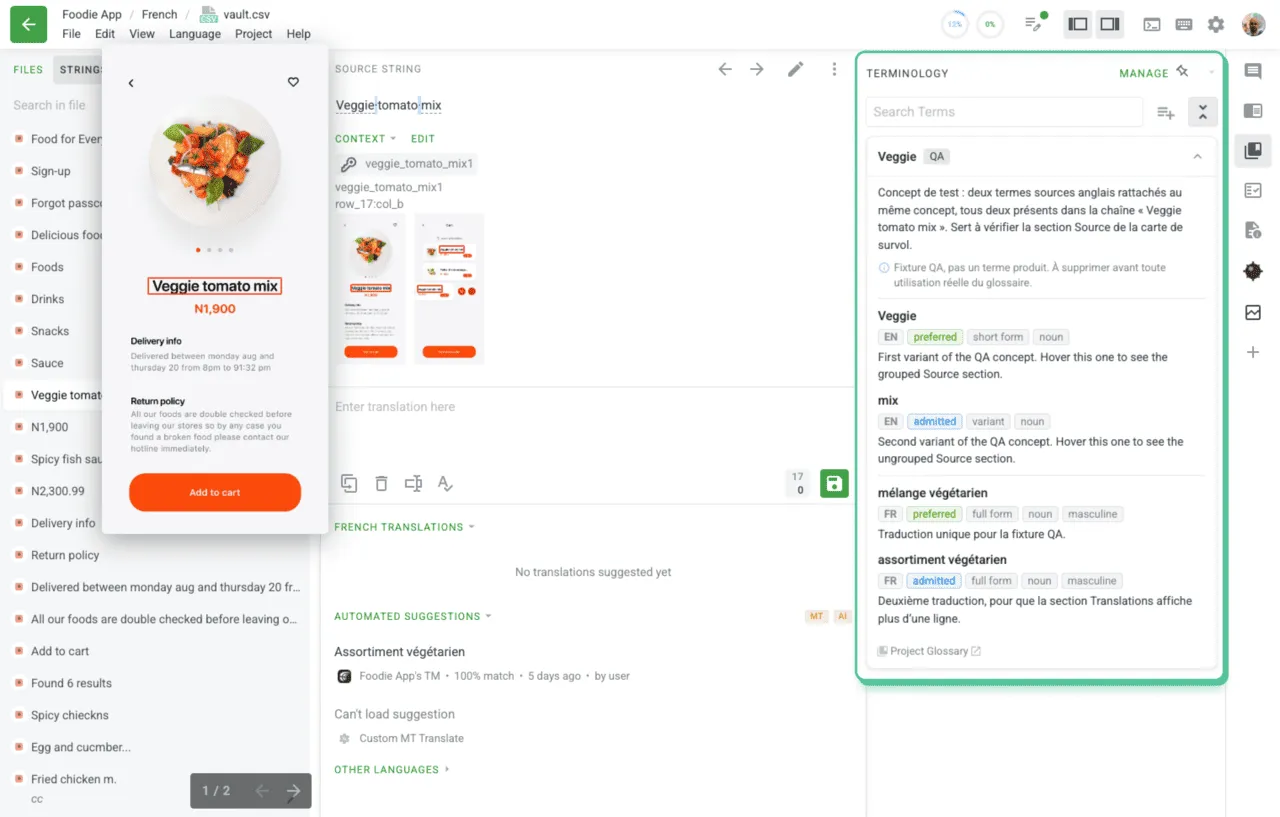
Cards fold shut when you don’t need them: one button collapses or expands every term on the string at once, and your choice is remembered in the browser. The glossary name at the foot of a card now links to the glossary itself. While terms load, you see placeholder cards instead of the previous string’s terms; a failed request says so and offers a Retry button. The whole panel also works properly with a keyboard and a screen reader now.
Tasks now show how much their scope changed
Create a proofreading task for 1,200 words, hand it to a translator or a vendor, and your project keeps moving: developers push updated source strings, a copywriter rewrites a screen, a feature gets cut. The task follows along — and until now, its word count silently changed with it, leaving no trace of the number you originally agreed on.
The new Scope section on the task details page, in both Crowdin and Crowdin Enterprise, answers that in two lines. Original scope is what the task covered when it was created; Current scope is what it covers today. When the two differ, a hint explains exactly how many words the task gained or lost. That’s the number you need when the vendor’s invoice doesn’t match the quote.
We also fixed something subtle along the way: editing a task’s title, deadline, or assignees no longer overwrites the original count — it stays put until you deliberately change what the task covers. And if you build on the Crowdin API, the original word count now comes back alongside the current one for every task. Nothing to enable — open any task and the section is already there.
Large projects open several times faster
If your project contains thousands — or tens of thousands — of files, you’ll notice this one right away.
Opening a language page used to mean Crowdin prepared everything up front: the entire folder structure plus translation progress for every file, folder, and branch, in one heavy request. Now the file tree loads first, so you can browse and search immediately, and progress numbers stream in moments later. Under the hood, we also cut thousands of redundant database lookups on every request.
There’s nothing to enable or configure — the speedup is already live for every project on both crowdin.com and Crowdin Enterprise. The larger the project, the bigger the win.
Figma plugin: parallel transfers, progress tracking, and text on a path
Versions 114 through 117 of the Crowdin for Figma plugin rolled out over the past month, and the theme is speed. Translation imports and page uploads now run in parallel rather than sequentially, which sharply cuts the wait when previewing translations across multiple languages and frames. We also reworked how text styles are read, so selecting text-dense layers or complex components no longer freezes the canvas.
Long operations — pushing frames, importing translations, building pseudo-localization — now show a live progress dialog with step details, percentages, and a Cancel button. The push wizard highlights empty and duplicate keys and jumps you straight to the problem rows with one click. Screenshot uploads got faster, and your preview preferences now persist between plugin sessions.
One more for design-heavy teams: Figma’s “text on a path” layers are now supported. Curved and path-based text can be pushed to Crowdin as source strings, linked to existing content, and translated directly on the canvas like any other text layer.
Other platform updates
- Crowdin Dreams works right after installation now — no setup steps before it starts gathering insights.
- The Google Gemini provider supports service account keys and Workload Identity Federation, so enterprise teams can connect it without long-lived credentials.
- The QA Issues Report can be exported as XLSX.
- Claude Opus 5 joined the natively supported models, and OpenAI service tiers are now supported.
- The API can delete files, directories, and branches asynchronously — handy for very large projects.
- Translation Costs reports can calculate TM matches based on edit distance.
- The TM and TM Suggestions sections in the Editor got a round of usability improvements.
- The DeepL integration received updates.
Crowdin Store updates
New integrations and file format:
- Optimizely CMS: localize pages, blocks, and SEO metadata, with two-way sync directly to language branches.
- Vero: translate your email, push, and SMS messages across Vero broadcasts and automated journeys, with automatic content sync.
- Shopify Translate & Adapt CSV: a new file-format app — upload Shopify CSV exports and translate them in Crowdin with all metadata, IDs, and markets preserved.
Updates to existing apps:
- AI Pipeline: connect your own in-house AI models and run custom workflows tailored to your domain and security requirements.
- Settings Sync: search, group and folder selection, and alphabetical sorting make project picking manageable in large workspaces.
- Marketo: full support for the New Email Builder and Asset APIs to translate modular emails natively.
- Storyblok: a [Draft] prefix and a “Hide drafts” option to filter unpublished stories in the file list.
- Klaviyo and Zendesk: upgraded to OAuth authentication for better security and a smoother connection.
You can install these and 700+ more apps from the Crowdin Store.
New podcast episodes
Four new episodes of the Agile Localization Podcast came out this month:
- 10 Million Words, Zero Escalations: Effective Retail Localization with Aydin Gür — managing Apple Retail globalization for the Turkish market, and why enterprise quality takes direct feedback loops with store teams, not just QA dashboards.
- How Technical Writers Are Becoming Localization’s Secret Weapon with Ian Cowley — treating UX strings as product decisions, and using pseudo-localization to prevent broken UI layouts.
- Why Terminology Still Needs Human Depth with Rita Prazeres Gonçalves — why relying solely on AI-generated glossaries can lead to domain contamination, and where human expertise sets the foundation for quality.
- The Reality of Enterprise Localization with Matt Grotenstein — the gap between localization strategy and execution, and why AI isn’t a quick fix for executives.
You can listen to all episodes on Apple Podcasts, Spotify, or YouTube.
External tools
This month we released new versions of:
- CLI 4.15.0, 4.14.4
- Android SDK 1.18.2
- JS API Client 1.56.2
- GitHub Action v2.16.4, v2.17.0
- Java API Client 1.34.0
That’s July. Poke around the new features, and tell us what should be on this list next month.
Localize your product with Crowdin

Crowdin Team